
12 Appendix C: How to direct wire robot
12.1 With an Ethernet Cable:
To get started, you need the following:
Ipad with USBC port
This dongle: (https://www.amazon.com/Anker-PowerExpand-Ethernet-Delivery-MacBook/dp/B08C9HZ5YT/ref=sr_1_3_pp?crid=2C9WLQ850WV36&dib=eyJ2IjoiMSJ9.1WThKEjET-0VSifNPtOpRCm9k0Pgk81DqptbuYVAvaEKRMP-UhBFZHKuZUIuB_wz7-MWZbbQMoxg370mhMgsfV91sjZ2kGPm8kR_Gg4OejfbGdQ_a6M-gcg1Kze1TwencY87-1QjF26kEMuMd8PVnUtUrRcqwQLFd-7wosHDFfaecURmNZ6fvv0Uc85HZvINhqo2RMWWrj6sIqB6g_fxuQSPCTI6GoTj2VYJng7xFI4.XsXOgij8b5oGOdzR1GBAuUO4Y1HvO6YYy__u64IYlFM&dib_tag=se&keywords=anker+6+in+1+usb+c+hub&qid=1745500224&sprefix=anker+6+%2Caps%2C121&sr=8-3)
Any ethernet cable like this one: (https://www.amazon.com/Amazon-Basics-Ethernet-Internet-Meters/dp/B00N2VIWPY/ref=sxts_b2b_sx_reorder_acb_customer?content-id=amzn1.sym.93dc5330-3850-4554-84ea-5a8297a3e1d7%3Aamzn1.sym.93dc5330-3850-4554-84ea-5a8297a3e1d7&crid=2H9DWOHLEC988&cv_ct_cx=20%2Bft%2Bethernet%2Bcable&keywords=20%2Bft%2Bethernet%2Bcable&pd_rd_i=B00N2VIWPY&pd_rd_r=4ed06e06-fff9-42a6-b190-141db76338df&pd_rd_w=PClKj&pd_rd_wg=4pr6l&pf_rd_p=93dc5330-3850-4554-84ea-5a8297a3e1d7&pf_rd_r=VVW6EFT6W3F89ZJR33ZY&qid=1745500256&sbo=RZvfv%2F%2FHxDF%2BO5021pAnSA%3D%3D&sprefix=20%2Bft%2Bethernet%2Bcable%2Caps%2C109&sr=1-1-76dd0896-e18a-4d36-b921-52fc00e57159&th=1)
Initial Setup:
- Power up control box
- Connect USBC adapter to Ipad
- Connect ethernet cable to USBC adapter
- Connect the other end of the ethernet cable to the control box
- Open Ipad
- Open the standard bots app
- Click add robot
- Wait for the robot to show up, if it doesn’t check under the cobtrol box to make sure the antennas are on the box
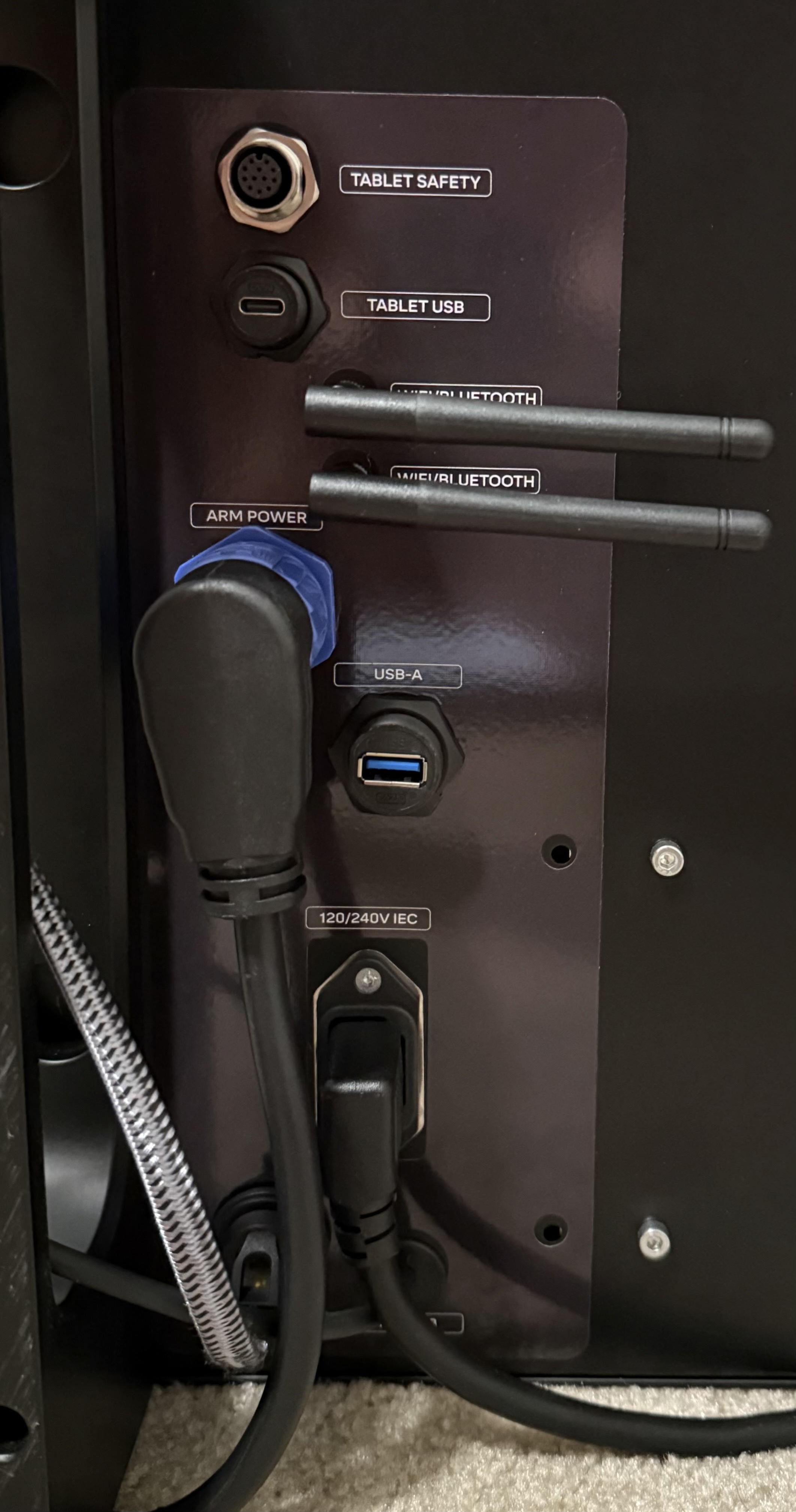
- Click through until it asks about “network”
- Go to ethernet tab
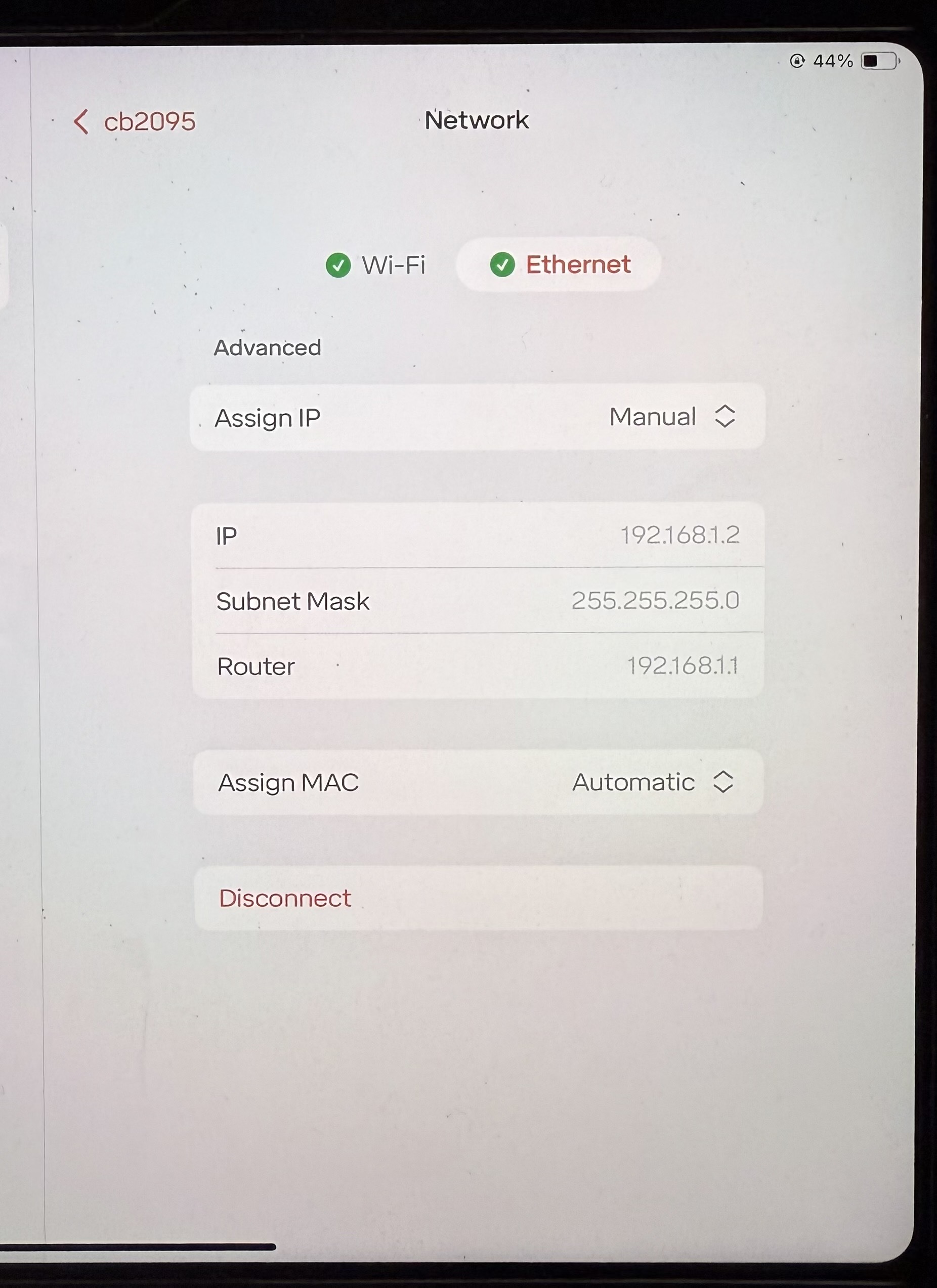
- Change to these settings: Manual/Auto: Manual IP: 192.168.110.5 Subnet Mark: 255.255.255.0 Router: 192.168.110.1 Leave all other as is
- Click connect on the bottom of the screen
- Then on the Ipad go to settings
- You should now see a settings for ethernet
- Go to ethernet settings
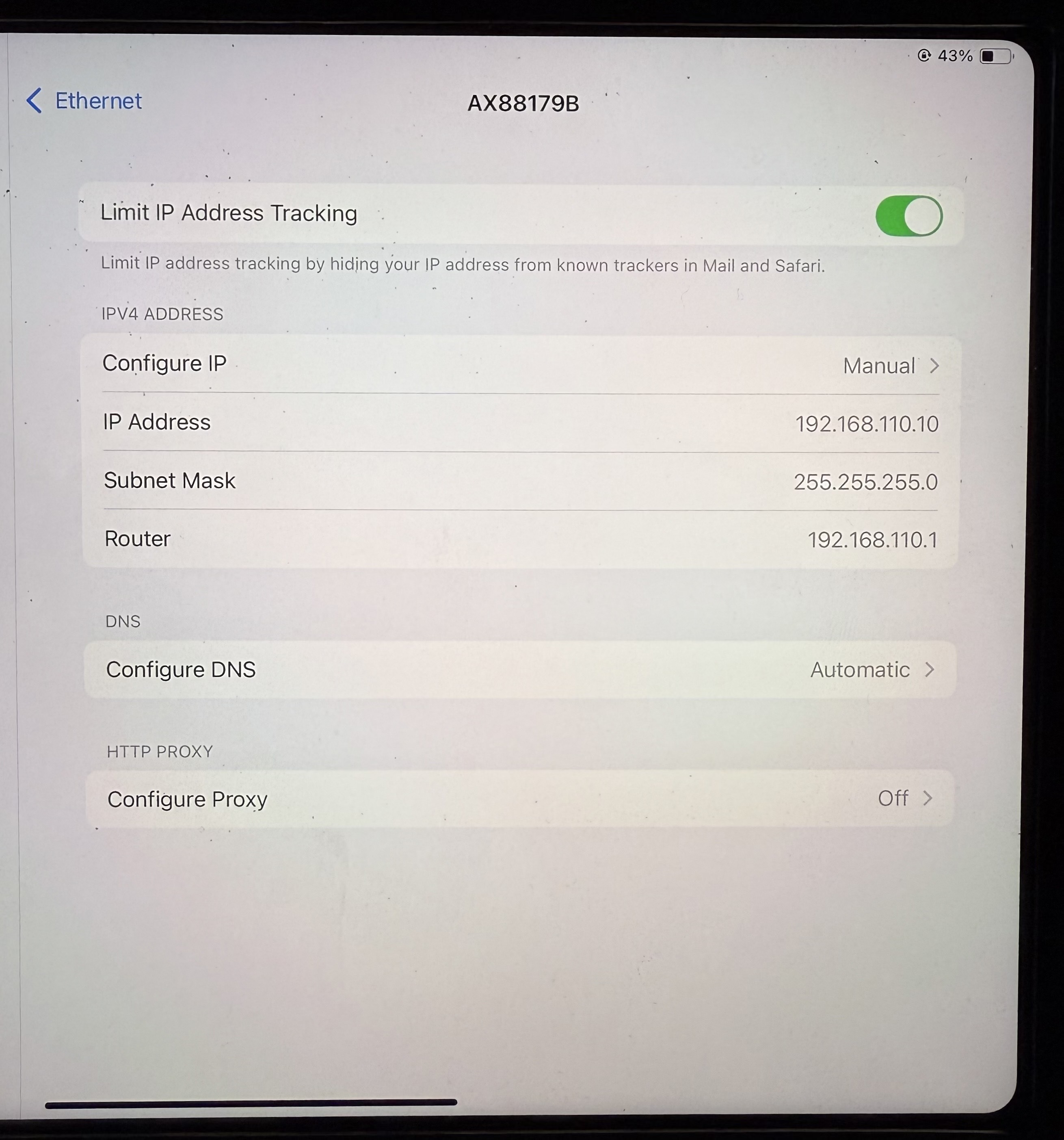
- Change to these settings: Manual/Auto: Manual IP: 192.168.110.10 Subnet Mark: 255.255.255.0 Router: 192.168.110.1 Leave all other as is
- Don’t forget to save these changes
- Open saffari or any web browser
- Type in 192.168.110.5:3000
- Hit enter
- UI should then come up
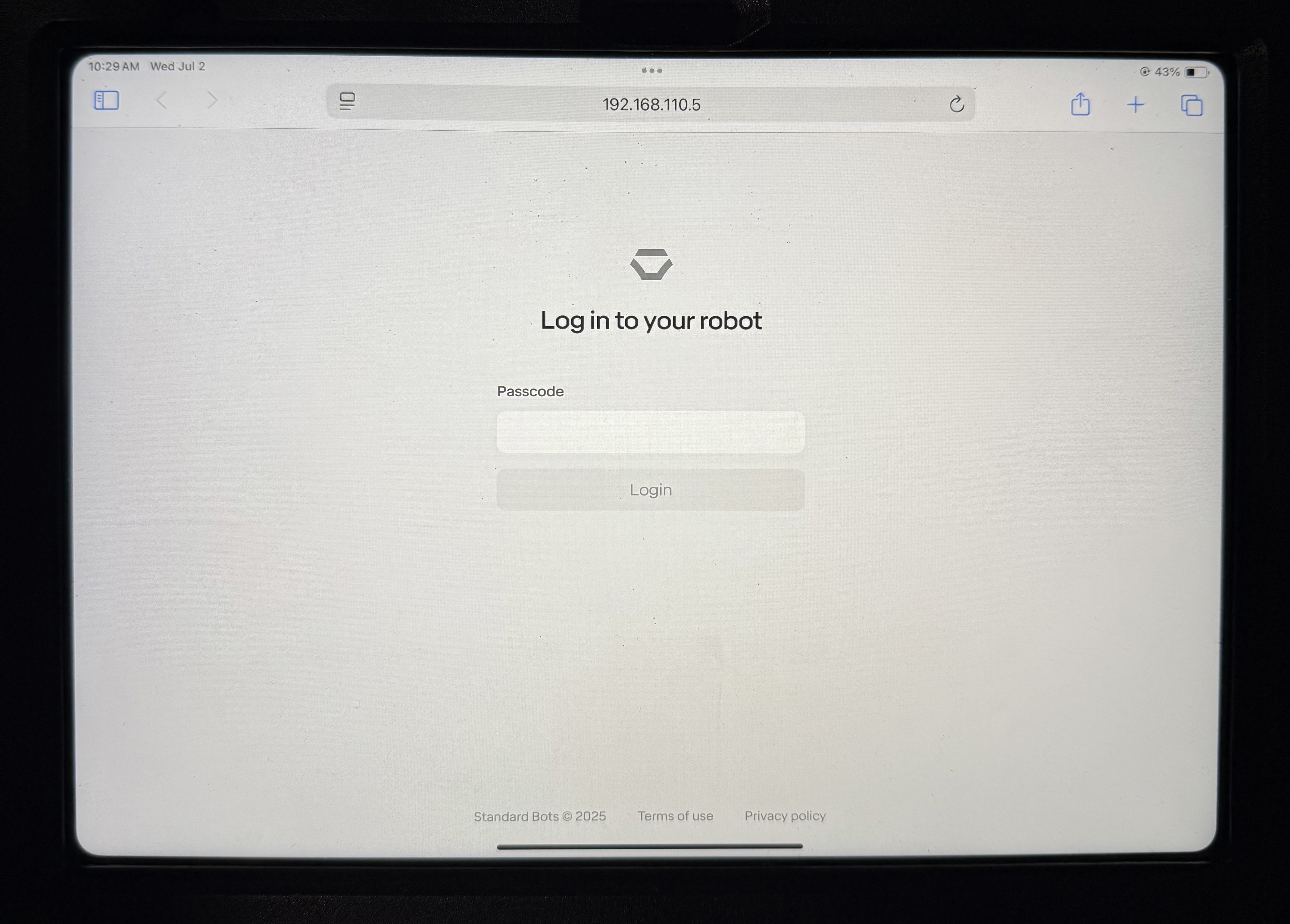
- Bookmark this page
- If the Ipad goes to sleep , you may have to unplug and replug in the USBC adapter to get it to wake up. BUT you should never have to reset any IP’s on the robot or Ipad as long as you use the same adapter.
Next time you set the robot up:
- Turn on the control box
- Wait for the LED on top of the box to turn green, if it does not turn green after 3 min press it.
- Connect USBC adapter to Ipad
- Connect the ethernet cable to both the adapter and the control box
- Go to your web browser and open the bookmark you previously saved
- Use the robot!
12.2 Direct Connection (using a USB-C Cable)
Initial Setup:
Power up control box
Connect the ipad to the Tablet USB port on the bottom of the control box with a usb-c cable. At this time, the port is only one directional. If you do not see the ipad start to charge, flip the end of the cable 180 degrees on the control box side.
Go to the settings in the ipad and set the ipad IP to automatic (this should be the default on the ipad)
Open Ipad
Open the standard bots app
Click add robot
Wait for the robot to show up
Click through until it asks about “network”
Go to the option that says “direct”. You will see that the status above says “healthy” if the steps above were followed correctly.
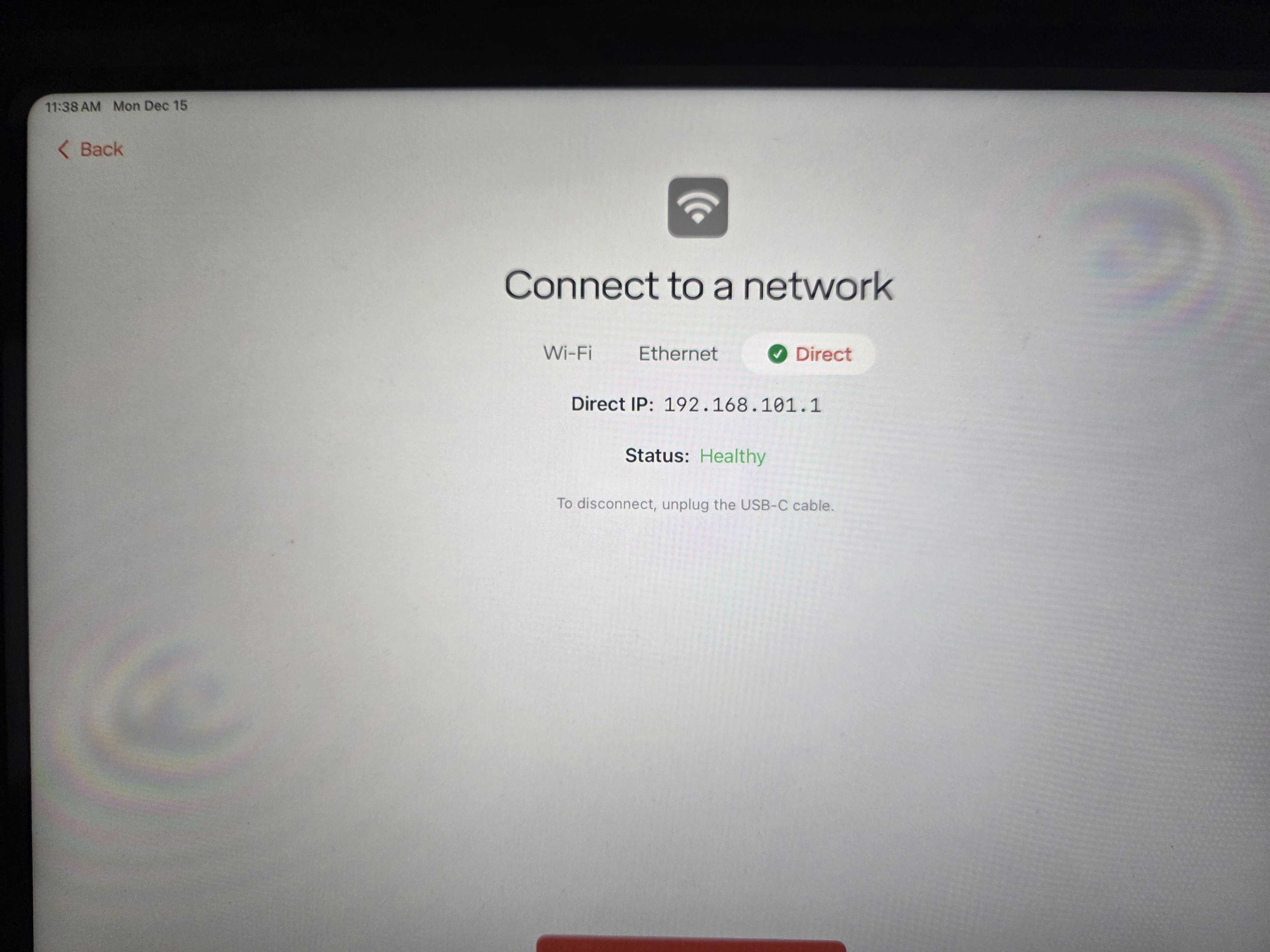
Continue to the next page. You can now use your robot.